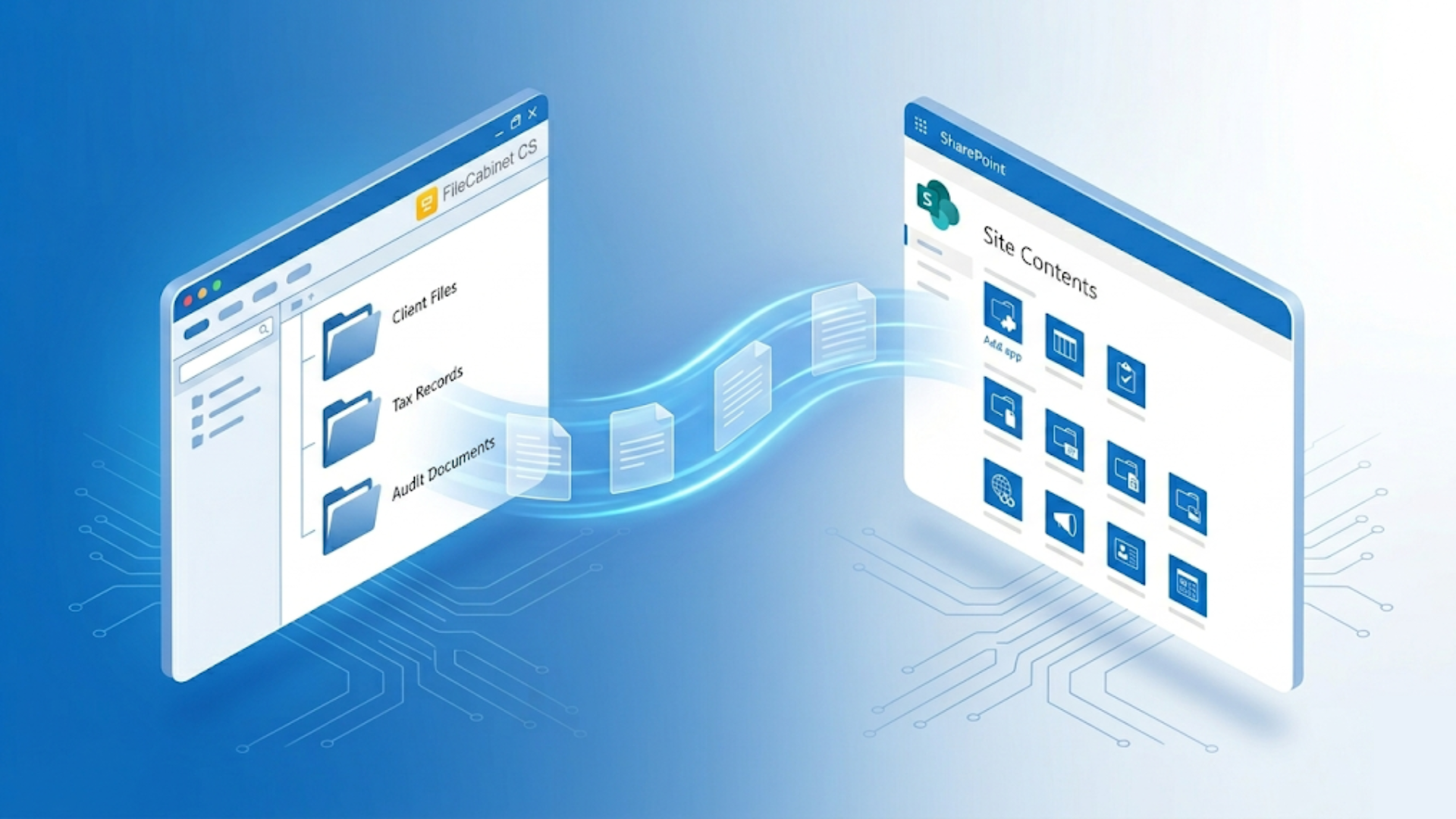
Thomson Reuters has officially confirmed FileCabinet CS will reach end-of-life on December 31, 2027 — after which updates, support, and even basic file access cannot be guaranteed.
FileCabinet CS to SharePoint migration has become urgent for thousands of accounting firms following the December 31, 2027 end-of-life deadline — and the migration path you choose determines whether it takes days or weeks. A professional service like Liscio delivers a fully organized SharePoint library — files placed, structure built — with little to no staff time spent on export or reorganization. Firms attempting DIY FileCabinet CS to SharePoint migration face manual export of every document (FileCabinet CS doesn’t store standard files), building SharePoint from scratch, and reorganizing flat file dumps before the system becomes usable.
FileCabinet CS to SharePoint migration requires three distinct phases: document export from FileCabinet CS’s proprietary OLE Structured Storage format, SharePoint library configuration with proper security groups and metadata, and file organization into usable directory structures. A professional service completes all three phases in as little as a weekend. A DIY migration runs for weeks, because FileCabinet CS exports one file at a time — each return printed to PDF individually — and the staff hours that consumes typically cost more than a professional flat fee, before SharePoint setup and cleanup are even counted.
See our complete FileCabinet CS end-of-life migration guide for broader migration context beyond SharePoint.
Why Accounting Firms Choose SharePoint After FileCabinet CS
For most firms on Microsoft 365 business plans, SharePoint is already included, so the storage is already paid for. Deep integration with Word, Excel, and Outlook means staff work within familiar interfaces rather than learning new systems.
Enterprise-grade security features including MFA, audit logs, and retention policies meet accounting firm compliance requirements for client tax documents. SharePoint’s granular permission controls allow segmentation by client, staff role, and document sensitivity — more flexible than FileCabinet CS’s drawer-based access model.
SharePoint requires deliberate configuration for accounting workflows. Out-of-the-box SharePoint will not replicate FileCabinet CS’s structured client-drawer organization. Plan setup time before migration, not after.
SharePoint’s real strength is the Microsoft stack and enterprise governance. It has the tightest integration with the Microsoft 365 tools your staff already use, and depending on your plan it brings litigation and legal holds, eDiscovery, retention policies, data loss prevention, and audit trails, which most accounting-specific tools do not match. What it does not do on its own is the accounting file work: out of the box it does not know what a K-1 or an 8879 is, and it does not read, name, or label documents so they can be found later. Liscio fills that gap. It reads each document, files it, and records what it is (year, issuer, form type) into SharePoint columns, so the archive becomes searchable for your staff and for any permissioned tool you connect. You keep SharePoint’s governance and Microsoft integration, and add the accounting intelligence it lacks.
Why Structured Metadata Pays Off Beyond One AI Tool
SharePoint’s real value comes from metadata: columns that let staff filter and search by year, period, issuer, or form type without clicking through a folder hierarchy for every query. None of that switches on by itself when documents land in a library — it activates when each file carries fields that say what it is.
That structure pays off broadly, not for a single vendor. SharePoint’s columns are exposed through the Microsoft Graph API, which means any permissioned tool can use them — Microsoft 365 Copilot, a connected AI assistant, a firm’s own tool, or ordinary Microsoft Search. According to Microsoft’s documentation on Copilot semantic indexing, when a query is scoped to a specific library, the retrieval step uses that library’s column metadata alongside file content to rank results — and the same Graph-level access is what a non-Microsoft tool uses too. Populating metadata during migration is not a bet on one AI vendor; it is future-proofing the archive for whatever a firm runs now or adopts later.
How Liscio Compares to Other Migration Options
Firms evaluating FileCabinet CS migration have four realistic paths. The critical difference is whether migration assistance requires platform lock-in.
- Thomson Reuters Onvio is the in-ecosystem successor to FileCabinet CS, with limited migration tooling. Firms committed to the Thomson Reuters stack may consider Onvio, though real-world reviews from tax professionals document portal reliability issues and onboarding friction.
- IT consultants can perform bespoke migrations but lack FileCabinet CS-specific tooling and accounting domain expertise. Expect open-ended hourly billing, longer timelines, and significant coordination burden on firm staff.
- SmartVault offers onboarding support for FileCabinet CS migrations, but only to the SmartVault platform. Firms must become SmartVault subscribers to access migration help. SmartVault is a capable accounting DMS and a strong destination option — Liscio can migrate your data there if that’s the firm’s choice, without requiring a Liscio subscription afterward.
- Canopy provides implementation support as part of its practice management onboarding, but migration assistance is tied to Canopy adoption. Firms choosing Canopy as their destination can use Liscio for the FileCabinet CS extraction, then complete setup within Canopy’s onboarding.
Liscio’s position: SOC 2 Type 1 attested, purpose-built FileCabinet CS export automation, dedicated accounting firm customer service, flat-fee pricing, and no destination lock-in. The only service that separates migration execution from platform selection.
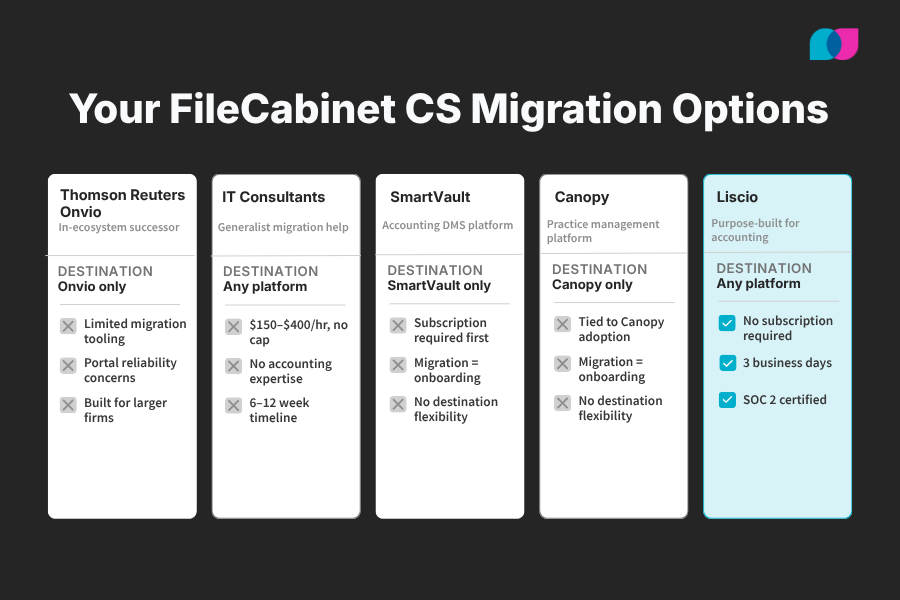
Liscio is the only FileCabinet CS migration service that lets you choose your destination platform — no subscription required.
FileCabinet CS to SharePoint Migration Complexity
FileCabinet CS stores documents as indexed page objects in legacy OLE Structured Storage format — not standard files in folders. A 40-page tax return exists as 40 separate page objects requiring reconstitution into PDF format through export functions.
Every document needs manual export from FileCabinet CS before SharePoint upload becomes possible. Export reconstitutes page objects into PDFs through built-in export functions, processed one document at a time. FileCabinet CS provides no bulk export interface for simultaneous client processing.
Folder structures visible in FileCabinet CS do not transfer during export. Output creates flat file collections requiring manual reorganization into usable directory hierarchies after export completion.
DIY migration involves three sequential burdens: (1) manual export of every FileCabinet CS document, (2) SharePoint library structure construction from scratch, and (3) flat file reorganization into structured directories. The combined effort is why a full DIY migration runs for weeks.
Liscio’s migration service automates all three phases. Automated export, SharePoint directory structure creation mirroring existing FileCabinet CS organization, and proper file placement deliver complete organized environments in as little as a weekend, without staff involvement.
Here is the part most firms get backwards: FileCabinet CS does not hold rich, per-document metadata for you to preserve. It organizes documents into drawers and folders keyed to client IDs, but for most uploaded files there is no year, issuer, or form-type attribute sitting in a database waiting to be carried across. So the migration is not a preservation problem — it is a creation opportunity. This is the once-in-a-decade chance to give years of documents the structure they never had, so that both people and AI tools can find them by what they are rather than by where someone happened to file them.
Detailed export procedures are covered in ourHow to Export Files from FileCabinet CS documentation.
Pre-Migration Planning: FileCabinet CS Data Assessment
Before choosing an approach, count your active clients and estimate how many documents each one has. A 50-client firm is a different job than a 500-client one.
Catalog your document types — UltraTax CS-generated PDFs, scanned source documents, embedded Word and Excel files. The embedded ones export in their original formats, so they need separate handling in SharePoint.
Document your existing FileCabinet CS folder structure before you start exporting. Screenshot the full client list with drawer names, subfolder hierarchies, and naming conventions — that record is what you’ll rebuild the SharePoint structure from.
Find any special characters in document and folder names — slashes, colons, quotes. FileCabinet CS allows characters that SharePoint rejects, so clean those up before uploading or the migration fails silently.
Review your FileCabinet CS user permissions and plan how they’ll map to SharePoint security groups. The two systems handle permissions differently, so there’s no automatic mapping — you rebuild them in SharePoint by hand.
Back up the full FileCabinet CS database before you start exporting. After the December 31, 2027 end-of-life date, you lose access — so if a problem surfaces later, you can’t re-run the export.
SharePoint Configuration for DIY Migration
Build out the full SharePoint document library structure before you migrate any files. Organizing a flat dump of files after they’re uploaded is far more work than uploading them into a structure that’s already there.
Recommended architecture: one document library per firm or practice area, client folders at top level, year-based subfolders below. Example structure: /Clients/Smith_John/2023/Tax Returns/
Set up metadata columns for the fields you’ll search on — tax year, entity type, document type, client ID. SharePoint search only works if that metadata is filled in consistently from the start. And this is the step DIY migrations most often skip. Columns are easy to create and slow to fill by hand across a decade of files. Unpopulated columns mean the archive looks organized but is not searchable. A migration that lands files without populating these columns leaves the firm with a bucket, not a searchable system.
Turn on version control in the library settings — it’s what handles amended returns and the multi-review cycles common in tax work.
Set up your security groups before migrating: staff role groups (preparer, reviewer, admin), client-level access, partner-only permissions. Set permissions on the structure before you load files into it.
SharePoint caps the full file path — including the site URL — at 400 characters. Long client names, deeply nested folders, or wordy file names blow past that and cause upload failures, so test your naming conventions against the limit before the full migration.
For a mid-size firm, setting up the library, metadata, permissions, and naming conventions is a full day of work before a single file moves.
DIY Migration Execution Process
Phase 1 is all FileCabinet CS export, before SharePoint enters the picture. Every document has to be exported from the FileCabinet CS application using File > Send to > File or Export to PDF, and each export rebuilds the document from its page objects into a PDF, one at a time.
Because export runs one document at a time, a staff member clears only a handful of clients a day, and Phase 1 alone stretches across weeks for a firm of any size.
Apply your naming conventions to every file as you export in Phase 1. Don’t plan to rename everything afterward — renaming files at scale turns into its own project.
Keep detailed export logs: client name, document type, year, export date, destination path. Manual export leaves no system audit trail, so your logs are the only way to confirm everything made it across.
Phase 2 is uploading the exported files to SharePoint. Once your local files are clean and organized, you can use the standard upload methods — drag-and-drop for small volumes, the SharePoint Migration Tool (SPMT) for bulk transfers.
SPMT is free Microsoft tooling for bulk uploads and includes migration reporting. But it does nothing for the FileCabinet CS export problem — it only moves standard files that are already sitting on disk.
Once files are uploaded, validate completeness before you decommission FileCabinet CS: spot-check exported PDF page counts against what FileCabinet CS shows, confirm the folder structure matches your plan, and verify permissions applied correctly.
Keep FileCabinet CS accessible until you’ve independently verified the SharePoint migration is complete. You want the original as a reference the whole way through validation.
Common Migration Problems and Solutions
- Incomplete PDF generation without error messages: FileCabinet CS can produce truncated PDFs on large or complex returns without error flagging. Always compare page counts between exported PDFs and FileCabinet CS displays. Segment large document exports when needed.
- SharePoint path length violations: File paths exceeding 400 characters cause silent SPMT upload failures. Audit naming conventions and folder depth before bulk uploads. Shorten client names or folder labels as required.
- SharePoint special character rejection: Characters valid in FileCabinet CS (slashes, colons, asterisks, quotes) violate SharePoint file naming rules. Execute find-and-replace operations on all file names before uploading. Single invalid characters block entire file processing.
- Permission architecture mapping: FileCabinet CS and SharePoint employ fundamentally different permission models. Drawer-level FileCabinet CS access doesn’t map to SharePoint security groups. Plan manual SharePoint permission reconstruction — automation is unavailable.
- Migration scope expansion: Firms consistently underestimate document volumes. “Quick” migrations extend to weeks when complete histories (5–10 years per client, all document types) are included. Size efforts accurately before committing staff time.
- Embedded document handling: Word and Excel documents export from FileCabinet CS in original native formats, not PDFs. Decide pre-migration whether PDF conversion is needed for SharePoint consistency, and include conversion steps in timeline planning.
Migrate to Any Platform — No Subscription Required
Every alternative migration service on the market — SmartVault, Canopy, Onvio — provides migration help only if you commit to their platform. Their migration assistance is onboarding, not a standalone service.
Liscio’s migration service works differently. Liscio migrates your FileCabinet CS data to SharePoint, NetDocuments, Canopy, SmartVault, or any other destination your firm chooses — with no Liscio subscription required before, during, or after. Pay once for the migration. Keep whatever platform you select.
This matters because many firms haven’t finalized their destination platform when they need to start migration. Liscio decouples the extraction problem from the platform decision, so firms can migrate their data safely while evaluating destination options without pressure. And wherever the files land, Liscio names them and records what each one is on the way in, so they arrive searchable rather than as a flat dump someone has to label later. The destination is the firm’s choice. The searchable structure comes with the move.
The Migration Is Half the Job: Keeping It Organized After
A migration populates metadata once, for the archive you are moving. Then the next tax season starts, and new documents arrive every day — and every one of them needs the same structure, or the library drifts back toward a pile. SharePoint stores metadata; it has no engine that knows what a document is. Something has to read each incoming file and populate its columns, and if that something is your staff, you have signed up to hand-file forever — the exact tax that made the old way slow.
This is where an accounting-native classification layer earns its place, and it is not a separate decision from the destination — it is what keeps the destination working. Liscio classifies accounting documents on arrival and writes structured fields into the SharePoint library through its existing integration: year, month, quarter, issuer, and document type or form number where applicable. It does this on the migrated archive and on every document that arrives afterward, so the structure you built during the move holds as new work comes in. SharePoint holds the files; Liscio keeps them classified. For a larger firm, where intake volume is highest, that ongoing accuracy layer is often worth more than the one-time migration — because a clean archive is only as durable as whatever keeps it clean.
Professional FileCabinet CS to SharePoint Migration Services
Liscio’s migration service addresses all DIY challenges: automated FileCabinet CS file export, SharePoint library structure creation mirroring existing FileCabinet CS directories, and organized file delivery into proper locations. Firms avoid SharePoint construction, file reorganization, and export process management.
Firms using Liscio’s FileCabinet CS to SharePoint migration service receive a fully organized SharePoint library structure with all files properly placed in as little as a long weekend, with zero staff time spent on export or reorganization. Every step is handled by full-time, US-based Liscio specialists — no offshore contractors, no subcontracted third parties.
“Everything went great. The fee was exactly where it needed to be, especially compared to the high costs other providers wanted to charge for a conversion. Their pricing was just unrealistic.”
Danielle Bordman, Owner, D Bordman CPA LLC
| DIY | Liscio | IT Consulting | |
|---|---|---|---|
| Timeline | Weeks | A weekend | Longer |
| Cost | High internal labor | Flat fee | Open-ended hourly |
| Subscription required | None | None — migrate to any platform | None |
| SharePoint structure built | Manual | Automated, mirrors FileCabinet CS | Varies |
| Staff time required | High | Minimal | Moderate |
| SOC 2 attested | N/A | Yes (Type 1) | Varies |
| Accounting domain expertise | Internal only | Yes | Rarely |
| Migration audit log | Manual logs only | Included | Varies |
Liscio-created SharePoint directories match existing FileCabinet CS client drawer and folder structures — no organizational rethinking, manual filing, or wasted effort. Firms access SharePoint day one and find expected familiar organization.
Liscio employs automated tooling for systematic FileCabinet CS directory traversal, ensuring complete document export without omissions. Automation delivers in as little as a weekend rather than weeks — process independence from staff-driven client-by-client processing.
Migration service evaluation questions: Do they construct SharePoint structures or deliver flat file dumps? How do they ensure completeness across all client drawers and folders? Do they provide migration audit logs? Are they SOC 2 certified?
SOC 2 Type 1 attested data handling throughout: encrypted transfers, zero client data retention post-migration, documented custody chains.
At realistic loaded staff rates, the internal hours a DIY export consumes typically cost more than a professional flat fee — before SharePoint setup, reorganization, and error correction. A generalist IT engagement, billed hourly with no FileCabinet-specific tooling, usually runs higher still. A purpose-built flat-fee migration includes export, SharePoint structure creation, and file organization in one price.
Firms with stalled manual exports are ideal candidates — Liscio completes FileCabinet CS extraction and continues from stopping points.
Post-Migration SharePoint Optimization
Conduct staff training sessions focused on document libraries and search before going live. SharePoint search power requires staff understanding of metadata filters rather than folder tree browsing.
Configure automated workflows (Power Automate) for routine tasks: document approval routing, client file-ready notifications, retention policy enforcement for older tax years.
Set up external sharing settings for client document access. SharePoint can function as a lightweight client portal for secure file delivery — relevant for firms without dedicated client portals like Liscio.
Establish backup and recovery procedures. SharePoint includes version history and recycle bins, but these don’t substitute formal backup policies. Define retention periods and recovery procedures before problems arise.
Monitor storage usage quarterly. SharePoint storage meters under Microsoft 365; large document volumes from multi-year client histories can consume storage faster than expected.
Related guides:
- How much does FileCabinet CS migration cost? Every option compared →
- How long does FileCabinet CS migration take? A realistic timeline →
Get your FileCabinet CS files migrated to SharePoint in as little as a weekend, not weeks. Fully organized directory structures mirroring your current FileCabinet CS setup — no staff time, no flat file dumps.
See how Liscio’s FileCabinet CS migration service works →
The Bottom Line on FileCabinet CS to SharePoint Migration
FileCabinet CS to SharePoint migration extends beyond standard file transfers. DIY approaches require manual export of every document, SharePoint construction from scratch, and flat file dump reorganization — weeks for mid-size firms. Professional migration services automate complete processes and deliver organized SharePoint environments in as little as a weekend rather than weeks, typically for less than internal labor costs.
Choice depends on firm capacity and timeline constraints. Understand full commitment scope before beginning either approach.