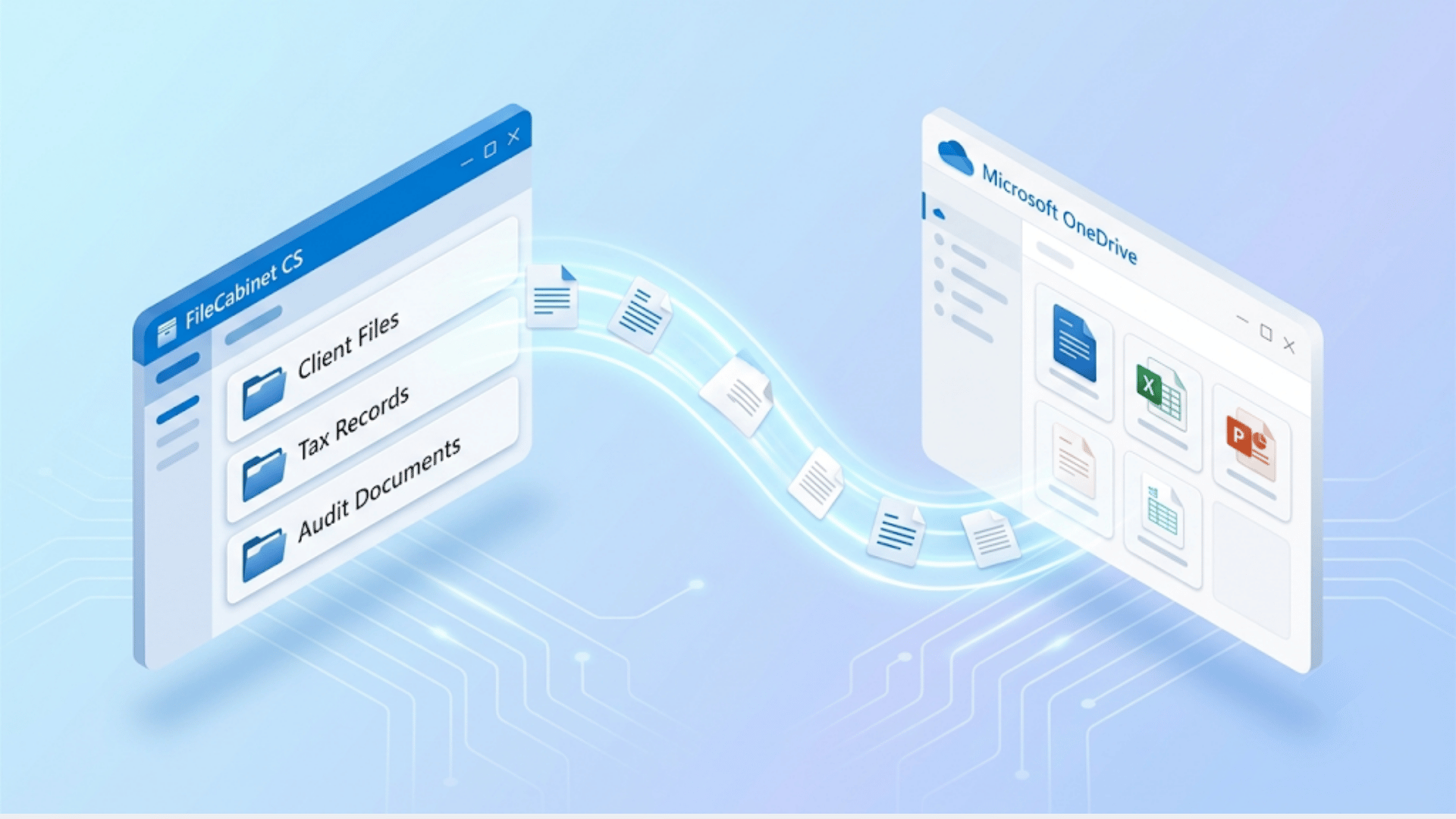
Thomson Reuters has announced end-of-life for FileCabinet CS, with the deadline arriving in 2027. For accounting firms planning a FileCabinet CS to OneDrive migration, the first question is not which tool to use — it is whether OneDrive is even the right destination. OneDrive is already in the Microsoft 365 subscription most firms are paying for, and the logic of “we have cloud storage, let’s use it” is hard to argue against on its face.
However, OneDrive is the wrong shape for most firms, and arriving at that conclusion after the migration is the expensive version of learning it. What follows is a decision framework for firms planning a FileCabinet CS exit: what the destination actually needs to look like, why the extraction is harder than it appears, and how to evaluate the cost and quality tradeoffs before committing to an approach.
The Question You’re Actually Answering
Moving FileCabinet CS into OneDrive is not a storage decision. It is a destination-design decision. The outcome is whether your file estate — 10 or 15 years of client documents, entities, and tax years — will be searchable, permissioned correctly, and ready for the next decade of M365 features, including Copilot. Or whether you have relocated a folder tree that happens to sit in Microsoft’s cloud and recreates every legacy pain point in a modern shell.
That distinction comes down to one architectural choice you need to make before extraction begins: personal OneDrive versus SharePoint document libraries.
But the destination is only half the decision. A SharePoint library with metadata columns is a filing system with no filer. Something still has to put the right values in Client, Entity, Tax Year, and Document Type — not just on the fifteen years you’re migrating, but on every document that arrives afterward. That’s the part most migration plans miss. You can pay once to tag the archive by hand and still be back to manual sorting by the next tax season, because the engine that keeps the metadata accurate isn’t the storage. SharePoint holds the files. It doesn’t know what they are. The long-term question isn’t only where the files live — it’s what keeps them classified correctly as new ones arrive.
OneDrive is a personal-scope surface. It is designed for an individual’s working files. When firms land a full history of client documents in individual OneDrive accounts — one for each partner or staff member who “owns” certain clients — they have not migrated to the cloud. They have fragmented the firm’s shared document estate across individual accounts, with no firm-level search, no centralized permissions management, and no path to Copilot grounding. According to Microsoft’s guidance on saving files to OneDrive or SharePoint, files you work on individually belong in OneDrive, while files a team works on belong where the team works — in a shared SharePoint library.
SharePoint document libraries are the firm-scope surface. A SharePoint library supports metadata columns — fields like Client, Entity, Tax Year, and Document Type that travel with the file rather than being encoded in the folder path or filename. Search queries those columns. Permissions inherit at the library level. And according to Microsoft’s documentation on Copilot semantic indexing, when a user scopes a Copilot query to a SharePoint document library, the grounding step uses the library’s column metadata alongside file content to constrain and rank results — so structured metadata directly improves the quality of Copilot’s answers.
The decision about which destination you are building toward has to come before anyone touches the FileCabinet export tools. The extraction approach, the metadata mapping, and the validation checklist all follow from it.
Why a Staff-Led FileCabinet CS Export Will Stall
Before evaluating vendors and costs, it helps to understand what makes FileCabinet CS exports non-trivial — not as a technical exercise, but as context for why a “we’ll have someone on staff handle it over a few weekends” plan reliably fails.
FileCabinet CS stores its document containers in a compound file binary format — the OLE structured storage format documented by Microsoft, which treats a single file as a nested hierarchy of storage and stream objects. What looks like a PDF inside FileCabinet is often not a discrete file sitting in a folder. It is assembled at view-time from page objects stored in the container. A naive export — using FileCabinet’s built-in export function, or a script that walks the directory structure — produces flattened files. The page objects reconstitute into a viewable PDF, but the client name, entity, tax year, and document type that made that file findable inside FileCabinet are stripped out. According to Thomson Reuters’ FileCabinet CS product documentation, those attributes lived in FileCabinet’s database, not in the file itself.
A staff member opening the exported folder sees files named something like 2019_1120S_Final.pdf — or worse, a timestamp-based filename with no client context at all. Fifteen years of client history, no longer searchable by client or entity. That is not a migration. It is a data loss event that is easy to miss until someone needs to find something.
This is not an argument against migrating to OneDrive or SharePoint. It is an argument for understanding that the extraction step requires deliberate metadata mapping, not just a file copy.
A Concrete Decision Fork: Three FileCabinet CS Migration Paths
Consider a two-partner firm with roughly 15 years of FileCabinet CS history — a few thousand client files spanning multiple entities and tax years. Three realistic paths exist:
Path A: Lift-and-shift into a shared OneDrive folder. The firm exports FileCabinet content using Thomson Reuters’ print-to-PDF export, organized the way FileCabinet organized it — drawer-level folders roughly corresponding to client names. The files land in a shared OneDrive folder accessible to both partners. Upfront cost is lowest, but the export itself is slow: FileCabinet’s print-to-PDF path rebuilds each document one at a time from the underlying flat page-image objects, so a firm with fifteen years of history is processing thousands of documents through a reconstruction step that runs at machine pace, not copy pace. And speed is the smaller problem. Search works only if you know the folder path; there are no metadata columns, so search has nothing to query. Permissions are folder-level at best. Copilot cannot reason meaningfully over a flat folder tree.
Path B: Structured migration into a SharePoint library with metadata columns. The migration is scoped to produce Client, Entity, Tax Year, and Document Type as metadata columns on every document in the destination library. An IT consultant or migration specialist handles the extraction, the metadata mapping from FileCabinet’s database, and the load into SharePoint. A “find Client X 2022 1120S” query returns the right document on day one. Permissions inherit at the library level. Copilot is grounded on structured content from the start. Cost is higher; the migration requires planning, mapping work, and validation. The destination is useful, and the M365 investment compounds over time.
Path C: Run Liscio as the classification layer over SharePoint. This is not a third place to put files — it is what makes the destination durable. The firm lands its archive in SharePoint (for the reasons above), and runs Liscio as the engine that classifies and meta-tags documents as they arrive: Client, Entity, Tax Year, Document Type, populated automatically instead of by hand. The migration cleans up fifteen years of history once; Liscio keeps the next fifteen years accurate without staff re-sorting every intake. For a large firm, this is the only version that survives real document volume — the more files a firm takes in, the more punishing the manual-tagging tax becomes, and the more the engine matters. Liscio plus SharePoint gives a firm both: the storage it already owns, and the accuracy layer that keeps that storage findable long term.
FileCabinet CS Migration Path Comparison
| Path A: OneDrive Lift-and-Shift | Path B: SharePoint + Metadata | Path C: Liscio + SharePoint | |
|---|---|---|---|
| Export speed | Slowest | Moderate | Fastest |
| Upfront cost | Lowest (staff time) | $20,000–$50,000+ (one-time IT migration) | $2,000–$7,500 (Liscio flat-fee migration) |
| Search | Folder path only | Column metadata (manually populated) | Column metadata (automatically classified) |
| Keeps metadata accurate as new files arrive | No — manual, forever | No — manual, forever | Yes — classified on arrival |
| Copilot readiness | No | Yes | Yes |
| Best for | Firms with weeks of free admin time | Firms committed to SharePoint as storage | Firms that want storage plus accurate search that lasts |
The Four Vendor Questions
When evaluating who should handle a FileCabinet CS to OneDrive or SharePoint migration, four questions produce the decision:
1. Who does the work? The options are DIY (internal staff), a specialist migration vendor, or an IT consultant. Each produces a different destination and a different cost structure.
2. Where do they leave you? A vendor that delivers files into a personal OneDrive folder has not solved the firm-scope problem. The contract should specify the destination: a named SharePoint document library, with named metadata columns, populated. If the vendor cannot specify this before the engagement, the destination will be whatever is easiest for them to deliver.
3. What does this really cost? Liscio’s migration service is priced at a flat fee in the range of approximately $2,000 to $7,500 depending on file volume. IT consultants handling a firm-scope FileCabinet migration with SharePoint metadata mapping typically run $20,000 to $50,000 or more, depending on volume and complexity. DIY, accounting for the staff hours required to handle extraction, naming, metadata entry, and validation, typically costs $8,000 to $15,000 in staff time — and that estimate assumes the export works cleanly the first time, which it often does not.
4. Will the files be ready for the next decade of M365 features? As noted above, Copilot grounds its answers more effectively when SharePoint content carries structured metadata. A flat folder tree without metadata columns cannot support that, regardless of what the migration cost.
The Migrate-and-Improve Opportunity
A FileCabinet CS migration is the once-in-a-decade opportunity to fix what has quietly accumulated in the legacy system: inconsistent naming conventions, duplicated files, and a client/entity/year structure that lives only in folder paths rather than in queryable attributes.
SharePoint metadata columns make that structure explicit. Translating FileCabinet’s drawer-and-folder hierarchy into SharePoint columns — Client, Entity, Tax Year, Document Type — means every future search, every retention policy, and every Copilot query operates on structured data rather than on guessed folder paths.
The migration window is the right time to establish naming conventions that will hold for the next system, and to deduplicate before the clutter transfers. Firms that skip this work consistently report rebuilding the same metadata structure a few years later, at additional cost. The migration window does not come back.
Deadline, Sequencing, and Validation
Thomson Reuters’ 2027 EOL for FileCabinet CS creates a real sequencing problem. If a meaningful share of firms begin planning migrations in 2026, specialist vendors and IT consultants with FileCabinet-specific experience will face queue pressure. Firms that begin scoping now have more options and more negotiating leverage than firms that start in 2027.
The tax calendar matters for timing. Migrating during busy season introduces risk. The practical windows are late spring (May–June, after April 15) and fall (August–October, before October 15). A migration that begins in February will collide with your highest-stakes client-service period.
Validation before decommissioning is non-negotiable. Before FileCabinet CS goes offline, confirm:
- File counts in the SharePoint destination match the FileCabinet source count within an acceptable tolerance, with exceptions documented.
- Metadata columns are populated correctly for a representative sample — not just that the columns exist, but that the values are correct.
- Permissions have inherited correctly at the library level.
- Search returns the expected document for a structured query: “find [Client name] [Tax Year] [Form type]” should resolve quickly in the destination.
- A 30-day parallel-run window, during which both systems are accessible, lets staff flag retrieval failures before the source is decommissioned.
The 30-day parallel run is the most skipped step in migrations of this type, and the most expensive to skip. Once FileCabinet CS is decommissioned, a retrieval failure requires going back to a backup — if one exists — or accepting the loss.
Where OneDrive Fits — and Where It Doesn’t
OneDrive is not the wrong answer for every use case. It is the wrong answer for firm-wide client history. It is the right answer for personal working files — a draft engagement letter a partner is editing before it gets finalized into the client library.
The next decade of value won’t come from where your files sit. It will come from files that arrive already knowing what they are and stay that way — so that everything downstream, from SharePoint search to Copilot to your own firm’s workflows, has accurate structure to work with. SharePoint is the right place to keep firm history. An engine that classifies documents on arrival is what keeps that history findable for the next ten years. Design the destination, then put the layer on top that keeps it true.
Liscio’s migration service handles FileCabinet CS extraction through destination setup, with flat-fee pricing that includes the metadata mapping work most DIY and general IT-consultant approaches leave out.